
Source: www.glos.ac.uk. All Rights Reserved. 2026 University of Gloucestershire
Visit Quick Pay: Payments Portal to access the portal payment page.
Quick Pay does not require you to login to an account, but it does still need a valid Student Number (7 digit number) when making any Tuition or Accommodation related payments, or a valid invoice number when paying a Student or Trade Invoice.
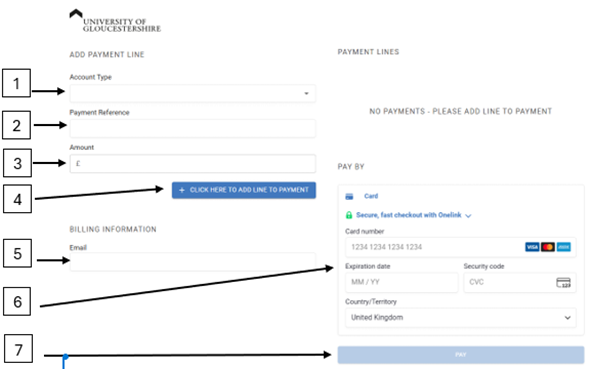
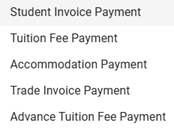
This is the type of payment you are making. The types of payment available are:
For Tuition Fees and Accommodation payments, the reference in this box must be your 7 digit student number, as this is where your payment links to the matching student account. For Student Invoice and Trade Invoice payments, this box will then request an invoice number.
Enter the amount to be paid.
Click to add the details you have entered so far to the payment basket. You can then add more payment lines if needed by repeating steps 1-4.
This will be where your receipt is sent. We recommend you use your University of Gloucestershire student email address.
Add 16 digit card number, expiration date, 3 digit CVC code and Country of Origin (defaults to UK). For future use, you also have the option of saving card details via Onelink to make the process quicker for subsequent payments.
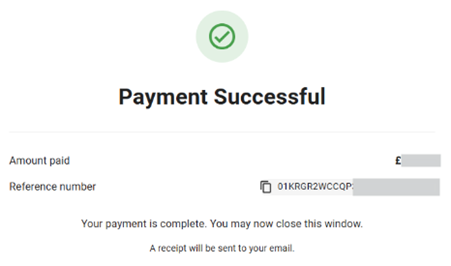
You should then see a confirmation message and a receipt will be emailed to the address included at Step 5
If you have any questions please contact the Income Team on [email protected] or phone 01242 714222 (option 1)